13. Drag events and complex paths
Kotlin SM A14 Touch Events On Complex Paths
Drag events and complex paths
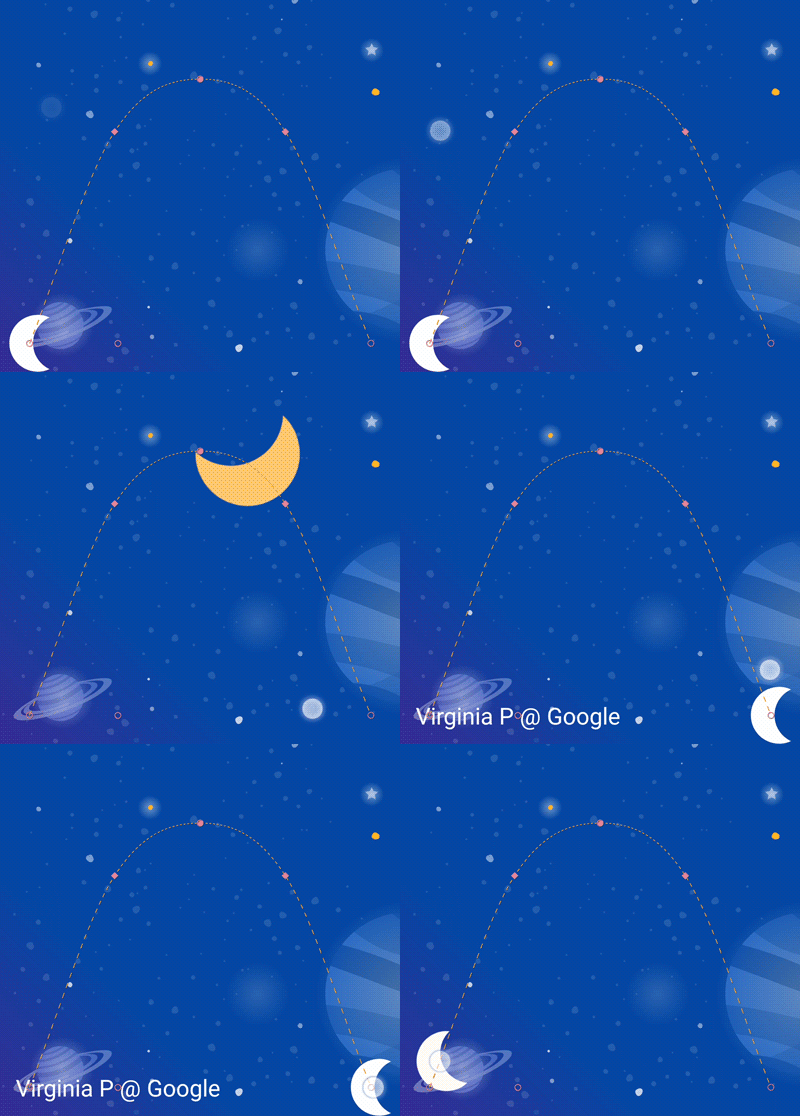
In this step you'll explore using OnSwipe with complex paths. So far, the animation of the Moon has been triggered by an OnClick listener and run for a fixed duration.
Controlling animations that have complex paths, like the moon animation you've built in the last few steps, using OnSwipe requires understanding how OnSwipe works.
Exploring OnSwipe behavior
- Open
xml/step7.xmland find the existingOnSwipedeclaration.
<!-- xml/step7.xml -->

<!-- Fix OnSwipe by changing touchAnchorSide -->
<OnSwipe
       app:touchAnchorId="@id/moon"
       app:touchAnchorSide="bottom"
/>- Run the app on your device and go to Step 7. See if you can produce a smooth animation by dragging the moon along the path of the arc.
When you run this animation, it doesn't look very good. After the moon reaches the top of the arc, it starts jumping around.
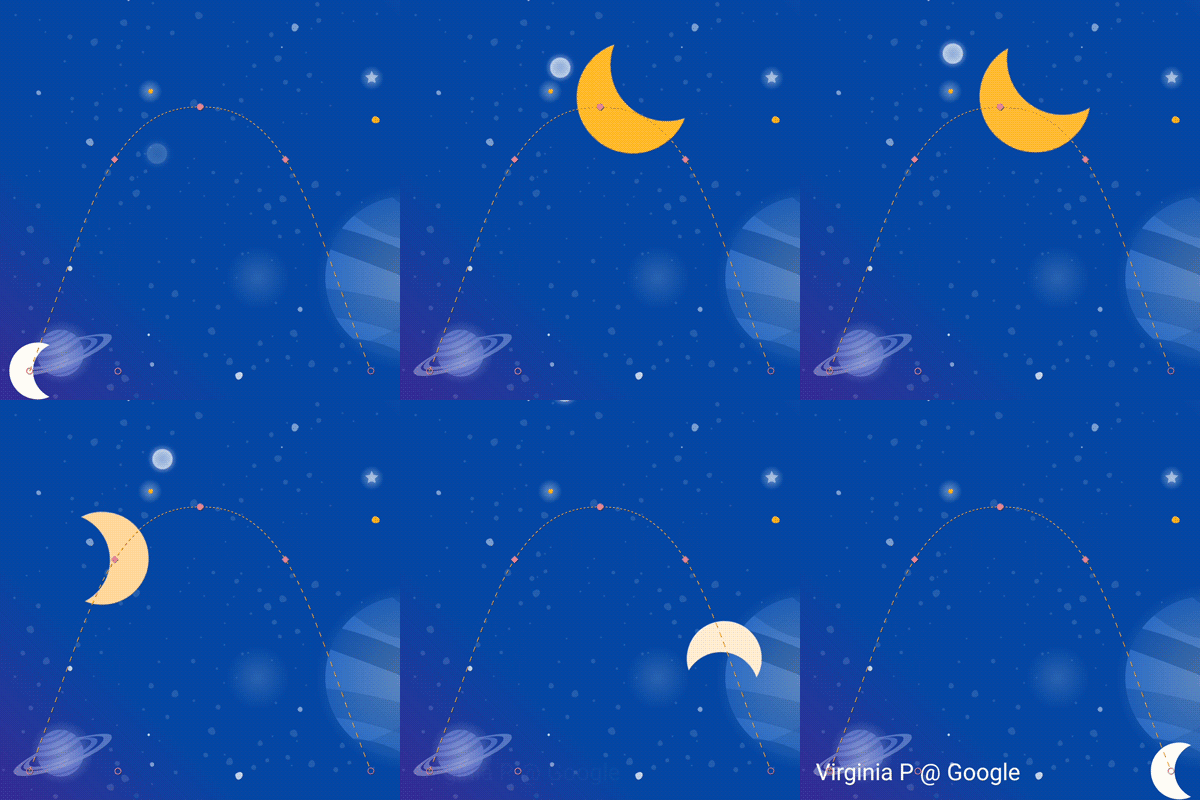
To understand the bug, consider what happens when the user is touching just below the top of the arc. Because the OnSwipe tag has an app:touchAnchorSide="bottom" MotionLayout will try to make the distance between the finger and the bottom of the view constant throughout the animation.
But, since the bottom of the moon doesn't always go in the same direction, it goes up then comes back down, MotionLayout doesn't know what to do when the user has just passed the top of the arc. To consider this, since we're tracking the bottom of the moon where should it be placed when the user is touching here?
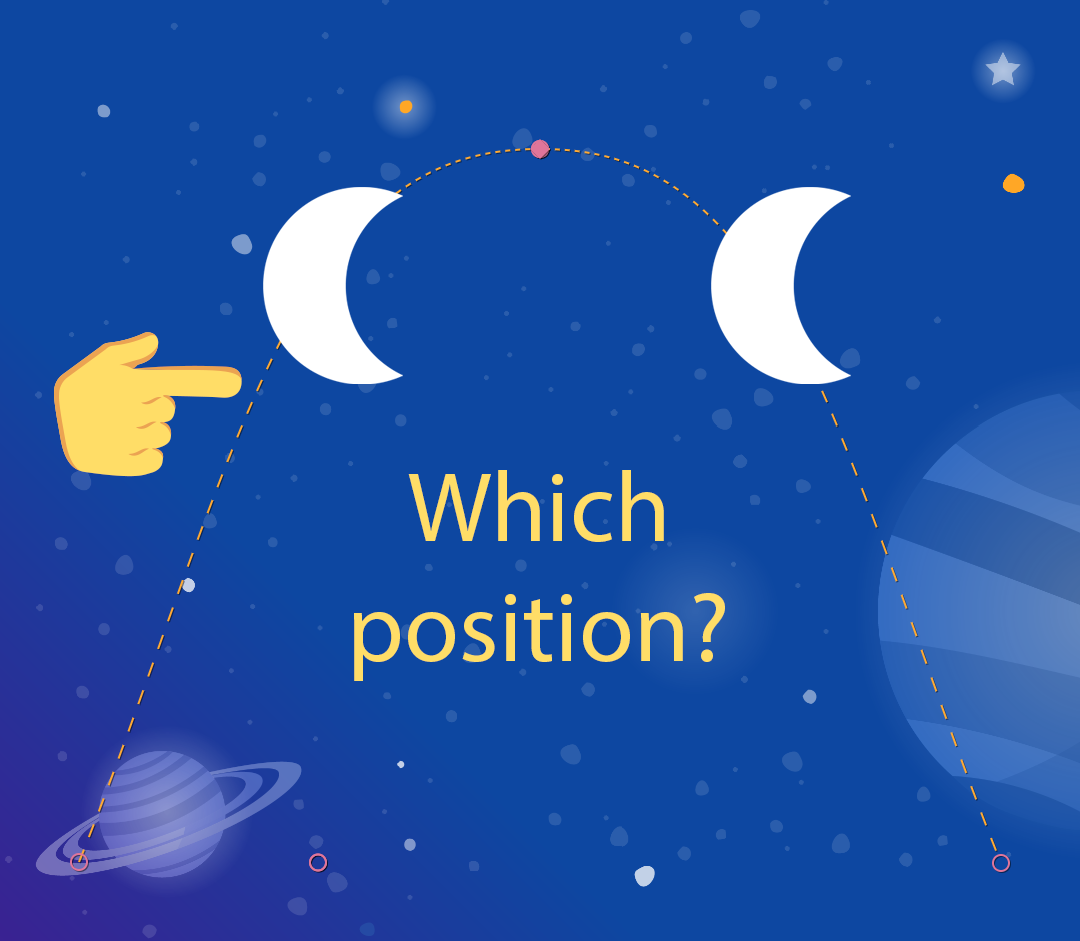
Using the right side
To avoid bugs like this, it is important to always choose a touchAnchorId and touchAnchorSide that always progresses in one direction throughout the duration of the entire animation.
In this animation, both the right side and the left side of the moon will progress across the screen in one direction.
However, both the bottom and the top will reverse direction. When OnSwipe attempts to track them, it will get confused when their direction changes.
- To make this animation follow touch events, change the
touchAnchorSidetoright.
<!-- xml/step7.xml -->

<!-- Fix OnSwipe by changing touchAnchorSide -->
<OnSwipe
       app:touchAnchorId="@id/moon"
       app:touchAnchorSide="right"
/>
The touchAnchorSide passed to OnSwipe must progress in a single direction through the entire animation.
If the anchored side reverses its path, or pauses, MotionLayout will get confused and not progress in a smooth motion.
In some animations, no view has an appropriate touchAnchorSide.
This may happen if every side follows a complex path through the motion or views resize in ways that would cause surprising animations. In these situations, consider adding an invisible view that follows a simpler path to track.
Using dragDirection
You can also combine dragDirection with touchAnchorSide to make a side track a different direction than it normally would. It's still important that the touchAnchorSide only progress in one direction, but you can tell MotionLayout which direction to track. For example, you can keep the touchAnchorSide="bottom" but add dragDirection="dragRight". This will cause MotionLayout to track the position of the bottom of the view, but only consider its location when moving right (it ignores vertical motion). So, even though the bottom goes up and down, it will still animate correctly with OnSwipe.
- Update
OnSwipewill to track the moon's motion correctly.
<!-- xml/step7.xml -->

<!-- Using dragDirection to control the direction of drag tracking -->
<OnSwipe
       app:touchAnchorId="@id/moon"
       app:touchAnchorSide="bottom"
       app:dragDirection="dragRight"
/>
Run the animation
- Run the app again and try dragging the moon through the entire path. Even though it follows a complex arc,
MotionLayoutwill be able to progress the animation in response to swipe events.